Watch the Video
Edit Main Background Image
- Select the Image Section: Click anywhere in the empty space of the main image section to open the section settings panel on the right.
- Open Background Image Settings: In the right sidebar, go to Style and scroll down to Background Image.
- Click on Edit Image to replace.
- Upload a new image or choose one from your media library.
- Optional: You can reposition the image by dragging across the image in the settings panel on the right.
- Optional: Edit or remove the scrolling feature in the Background Image Attachment section.
Edit Background Image Overlay
- While in the Style tab of the section settings panel (right sidebar), scroll down to the section: Background Overlay Settings and toggle it open.
- Change the Color:
Select the colored circle next to Overlay Color.
Use a color from your theme color palette or use the color picker.
Note: If you set a color from the color picker instead of from your theme palette, this color will not change when you edit the Global Color Pallette. You will have to repeat this step to change your color. Read more about Global Colors here. - Change the Opacity: (strength of the color overlay) Drag the Overlay Opacity toggle left for lighter intensity or right for stronger intensity. Or, set a numerical value.
Edit Social Icons
- Click on one of the social icons to open the settings.
- Cick on an existing icon to update the hyperlink.
- Click the [+] below the icons to add a new icon.
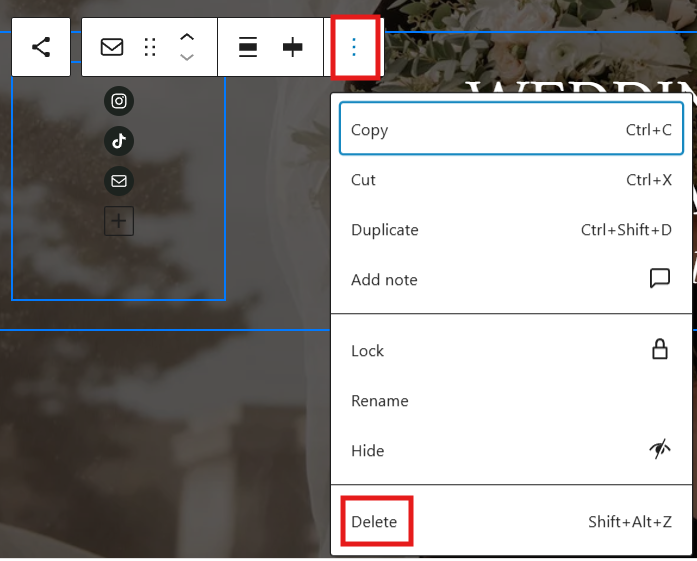
- To remove an icon:
Click on the icon you want to remove.
Open the Options menu by clicking on the three vertical dots (⋮) to the far right of the icon’s toobar.
Click Delete. - You can add a custom icon by adding a new block, and search for the Icon block. Adjust the icon size to about 26 and match the colors & style with the others.
Articles Mentioned
Last updated on February 13, 2026
Previous Article
next Article