This guide focuses on theme-specific edits that are unique to this page’s layout and functionality. Simple updates—like changing text, fonts, or images—are not covered, as those are already included in Kadence and WordPress tutorials.
Watch the Video
Hero Slideshow
This section utilizes a slideshow for the background image, and includes a background overlay.
Change Images
- Select the Image Section: Click anywhere in the empty space of the main image section to open the section settings panel on the right.
- Open Background Image Settings: In the right sidebar, go to Style and locate Background Settings.
- This will display a list of slide images. click on each Edit Image button to change the image.
Change Slide Count
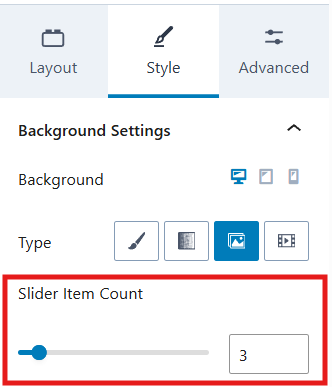
- To change the number of slides, go to Style > Background Settings and locate the Slider Item Count slider.
- You can drag the bubble left for less or right for more, or simply type in a numerical value.
Turn off the Slideshow
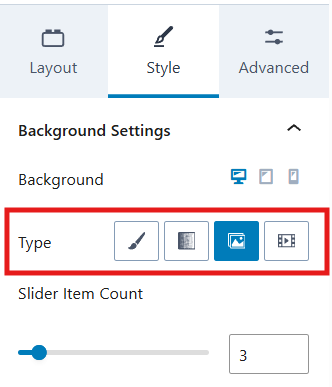
You may also turn off the Slideshow feature under Style > Background Settings and changing the Type setting.
Select the icon based on the type of background you want:
- Paint Brush = Classic – Simple Color or Single Photo
- Gradient = Gradient
- Video = Video
Change Color Overlay
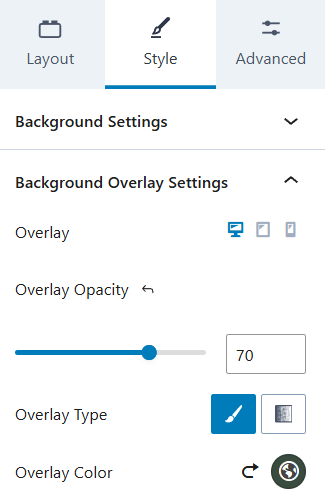
- While in the Style tab of the section settings panel (right sidebar), scroll down to the section: Background Overlay Settings and toggle it open.
- Change the Color:
Select the colored circle next to Overlay Color.
Use a color from your theme color palette or use the color picker.
Note: If you set a color from the color picker instead of from your theme palette, this color will not change when you edit the Global Color Pallette. You will have to repeat this step to change your color. Read more about Global Colors here. - Change the Opacity: (strength of the color overlay) Drag the Overlay Opacity toggle left for lighter intensity or right for stronger intensity. Or, set a numerical value.
- Remove the Overlay: Click the
 return arrow icon next to the Overlay Color colored circle.
Last updated on March 10, 2026
Previous Article
next Article