Watch the Video
Update the Top Link Boxes
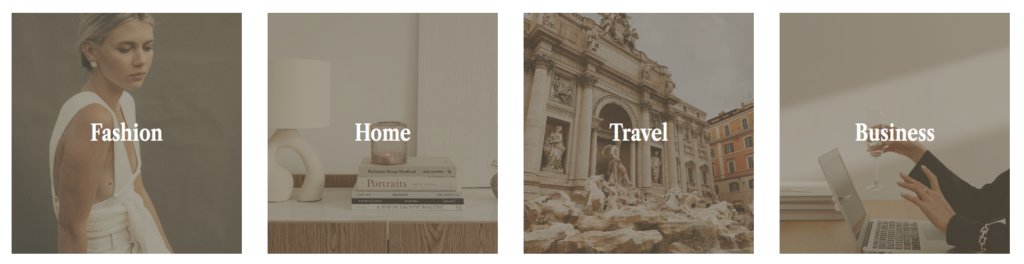
To update each box:
- Click on the box.
- Change the image under Style – Background Image.
- Update the text directly.
- To change the link:
- Click the box itself
- Go to General
- Find Overlay Link
- Under Link Entire Section, delete the existing link and enter your new one
- Click the curved arrow to apply the link
Repeat these steps for each box.
Edit the “Explore More” Links

It’s recommended to keep this section to 4 links or fewer for the best appearance.
The styling is already built in, so it’s best to edit the existing placeholder links rather than starting from scratch as the styling will be lost.
Recommended method:
- Edit the existing placeholder navigation links
- Replace them with your own links while keeping the structure intact
If you do want to create a new navigation block:
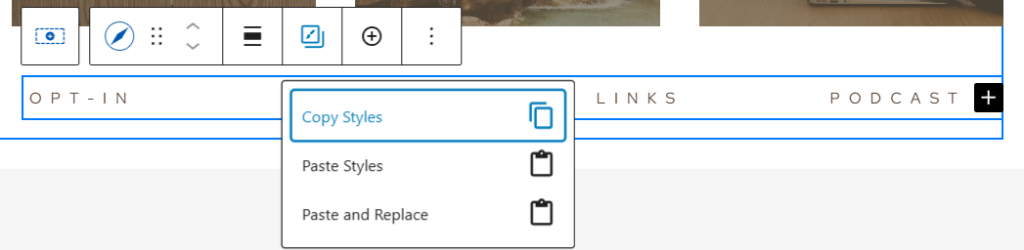
- Use Copy Styles
- Create a new navigation
- Add your links
- Use Paste Styles to apply the same formatting
Customize the “Browse the Latest” Post Feed
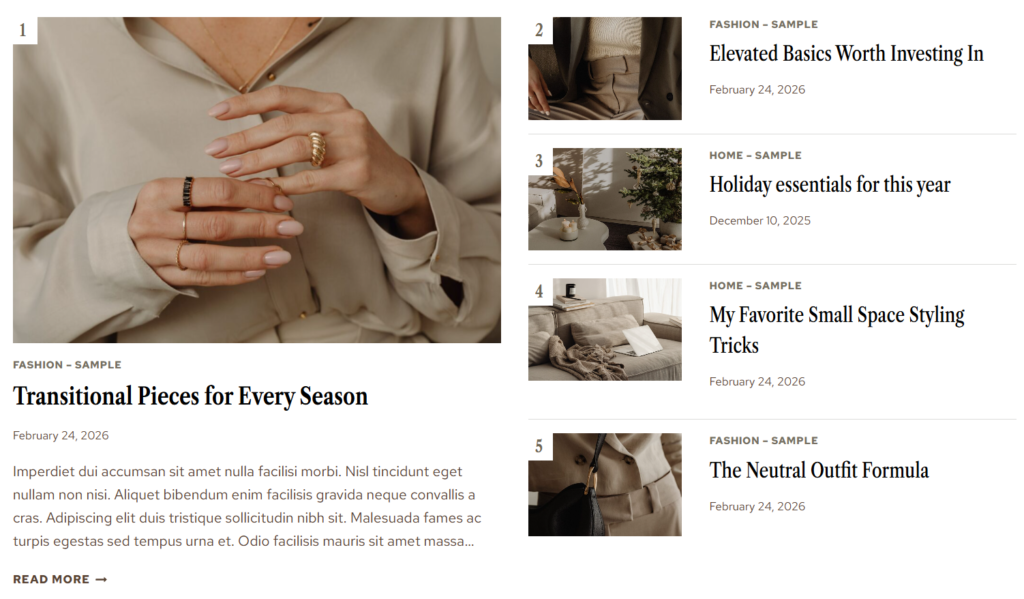
Set Included Post Settings
The Browse the Latest section pulls in recent posts, which you can include all posts, or only by specific category/categories.
Important settings to review:
- Select the left post block.
- Choose the category you want to pull from, or keep the field empty to pull in all posts. You can also exclude categories.
- On the right-side posts, make sure Offset Starting Post is set to 1 so the most recent post does not duplicate the featured one on the left (if including the same categories).
Turn Off Post Numbering
This is a setting included in the Customizer, under the Florence Theme section. Refer to the documentation on these settings by clicking here.
Edit the “Currently Loving” Carousel
Please reference the Shopping Carousels documentation.
Update the Featured Posts
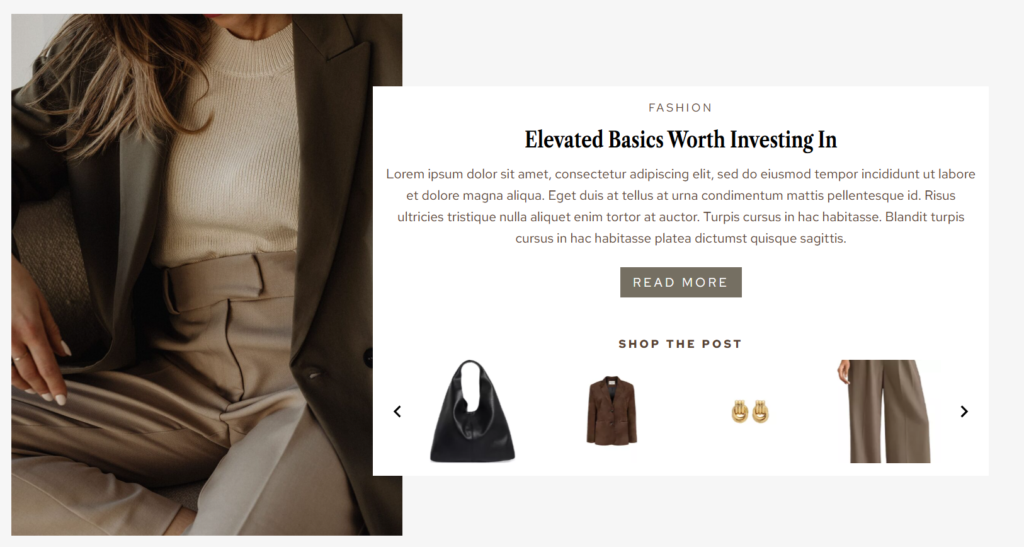
The featured post sections are manual, which makes them great for evergreen or especially important content. The template includes a variation of a photo on the left or the right, as well as a solid-color variation.
To update these:
- Click the image and choose Edit Image to replace.
- Update the text, links & product carousel manually. Refer to the shopping carousels documentation for more information.
You can also feature a landing page instead of a blog post if preferred.
Edit the “Latest Features” Tabbed Section
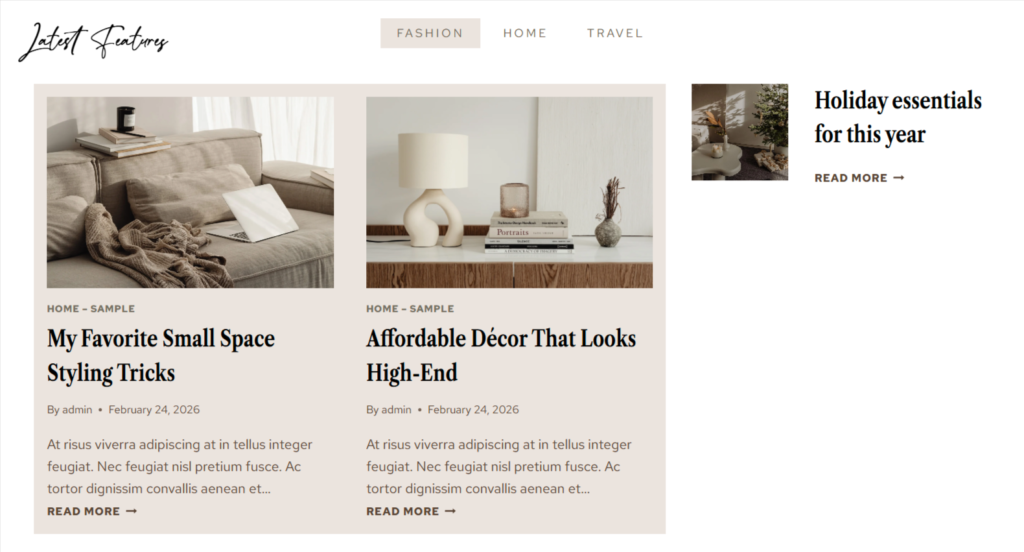
Set Included Post Settings
This section uses tabbed content with featured posts assigned by category. The script heading uses your accent font.
To customize each tab:
- Select the post block within the colored box.
- Assign the category you want to display.
- On the right-hand post list, make sure the offset matches the number of featured posts on the left (if assigning the same category).
For example:
- If the left side shows 2 posts, set the right side offset to 2
- Otherwise, posts may duplicate
You can also simplify the layout by:
- Reducing the number of featured posts to 1
- Changing the columns to 1 column
Repeat these steps for each tab.
Add a New Tab
To add another tab:
- Open the Document Overview / List View
- Click the plus button to add a new tab
- Copy an existing tab’s row layout:
- Select the row layout in the left sidebar
- Press Control + C
- Open the new tab
- Insert a paragraph block
- Paste the copied content
Customize the Curated Shopping Tabbed Section
This section is also tabbed, but the tabs appear on the left side instead of the right. It was designed to feature an individual post alongside manually selected products.
To update it:
- Select the tab you want to edit
- Choose the specific post to feature (I recommend assigning the post to a Tag such as curated home and the post you want to feature will be the only one with that tag.)
- On the right-hand side, manually update each product feature:
- Add or edit the link
- Go to Style
- Update the image under Media Settings
- Change the text details
Repeat for each product item.
To add another tab, follow the same copy-and-paste tab method from the earlier tabbed section.
Articles Mentioned
Last updated on March 26, 2026
Previous Article
next Article