When you want to use multiple Emma-theme pre-made sliders on the same page, there are a few things to cover and keep in mind to make sure they all work as intended!
For this example: We’re using a custom slider found on Homepage #1 and another from the Single Experience page:
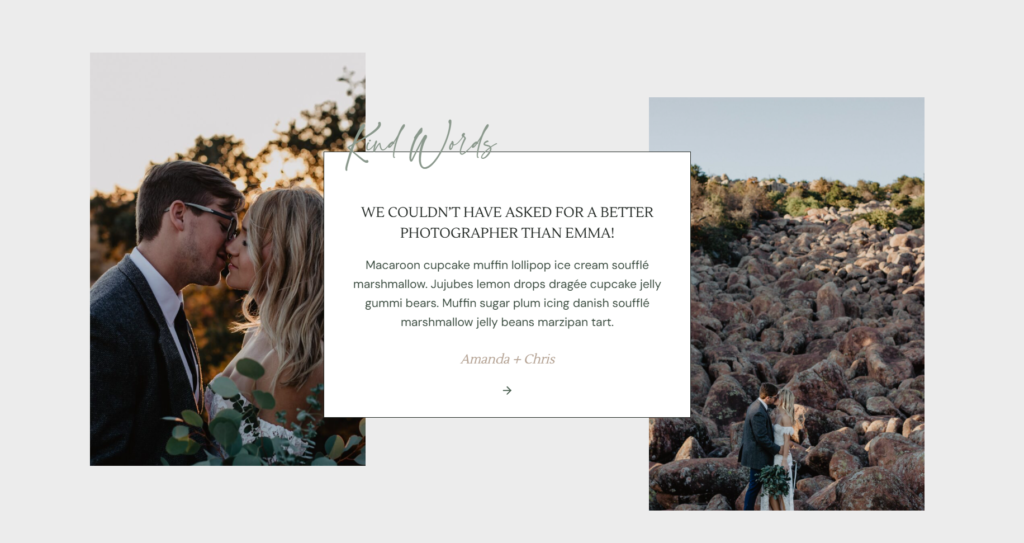
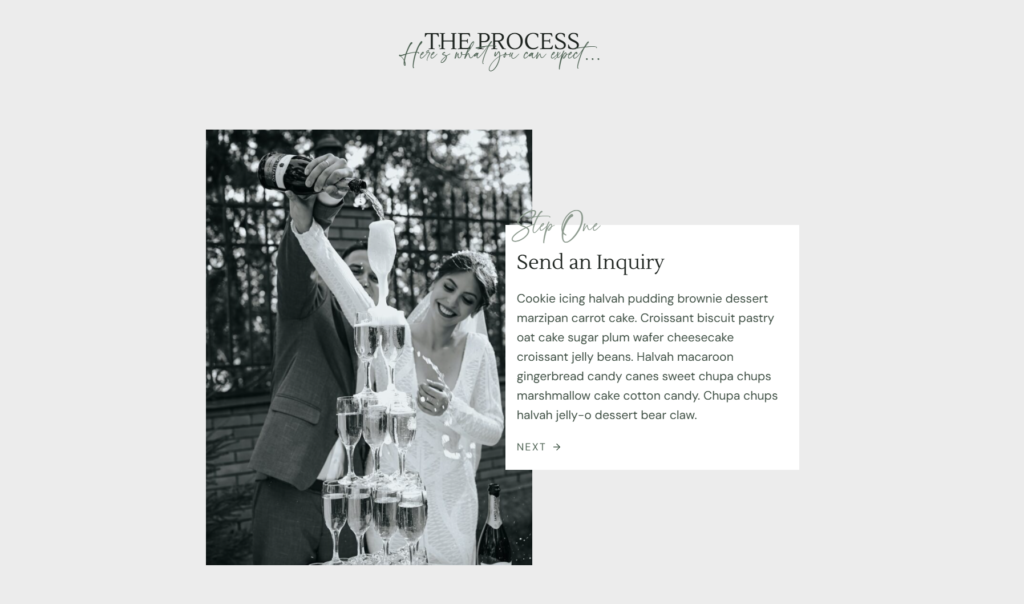
Step 1 – Identifying an Emma-Theme Slider / Custom Slider:
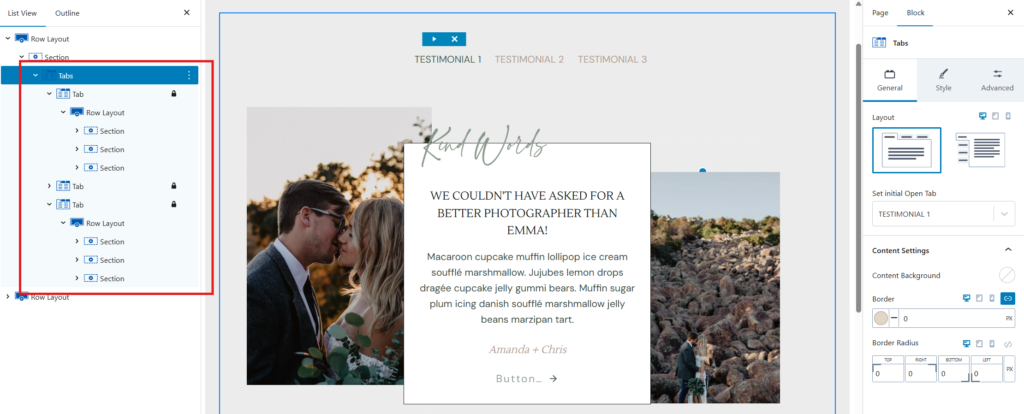
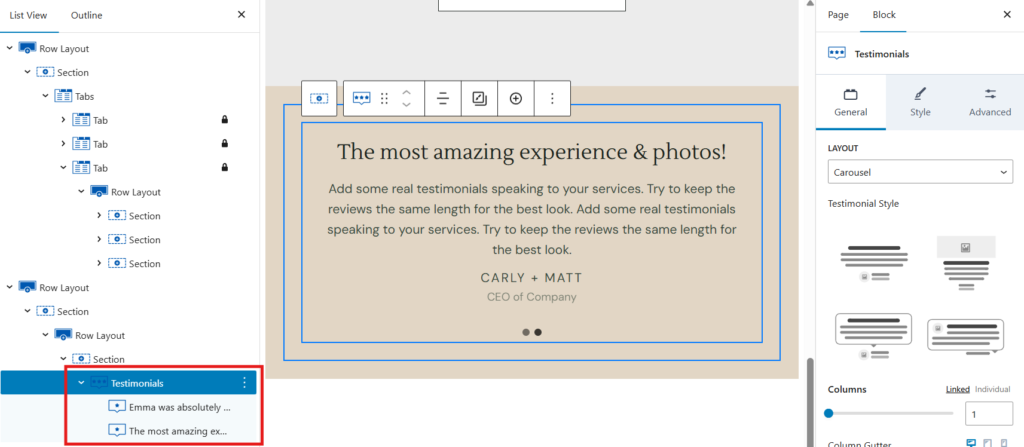
The Emma-theme sliders are the pre-made slider blocks that utilize the Tabs block. These do not use blocks such as Testimonials or Carousel Gallery. Those work separately & independently and are safe to use as many times as needed on a page without needing to follow these coming steps.
Is an Emma-Theme Custom Slider
Is NOT an Emma-Theme Custom Slider
Step 2 – Understand the Functionality: Anchor Names Must Be Unique
Custom sliders work using anchor links (like #1, #2, #3, etc.), as covered in
Homepage #1 – Editing Testimonial Slider, Step 3.
If two different sliders on the same page reuse the same anchor names, clicking one slider can jump to the wrong one.
Example of what can go wrong:
- Slider A has an anchor named
#2 - Slider B also has an anchor named
#2 - Clicking “2” on Slider B may jump you up to Slider A instead
So it’s important that we have unique naming sets for each of these sliders we want to use.
Examples that work:
- Slider 1:
#1,#2,#3
Slider 2:#step1,#step2,#step3 - Slider 1:
#1A,#2A,#3A
Slider 2:#1B,#2B,#3B - Slider 1:
#test1,#test2,#test3
Slider 2:#process1,#process2,#process3
💡 The names can be anything — they just need to be unique across the page.
Step 3 – Check the Anchor Names on Each Slider
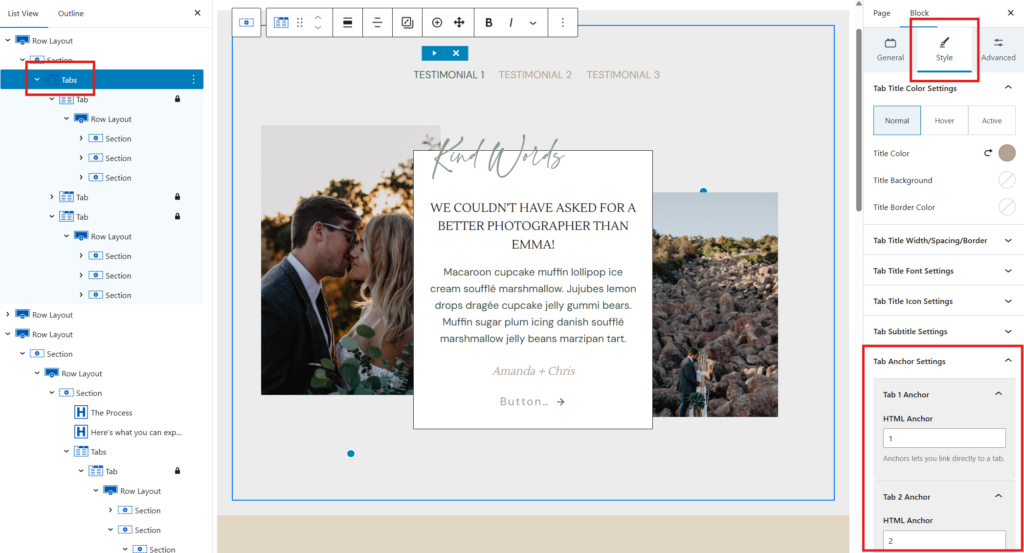
- Click into the first Tabs Group slider.
- Go to Style > Tab Anchor Settings.
- Note what the anchors are named (ex:
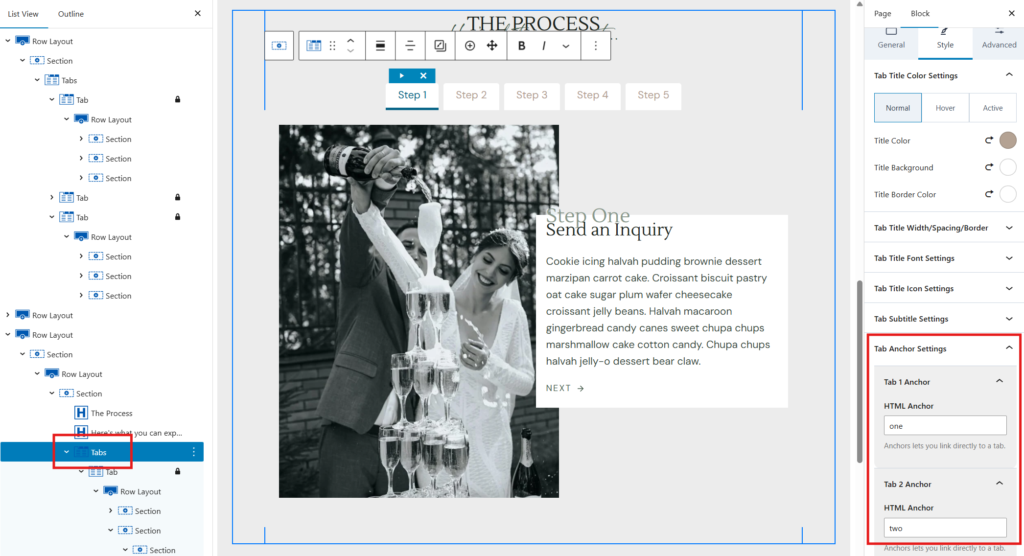
1,2,3,4, etc.). - Repeat for the second Tabs slider further down the page.
- If the names are different, you’re good to go!
If the names are the same, please follow Step 3 through Step 5 on this article.
Example that Works
These sliders will work on the same page together since they use separate naming conventions for each slider.
This group uses tab anchors 1, 2, 3, etc.
This group uses tab anchors one, two, three, etc.
Articles Mentioned
Last updated on February 14, 2026
Previous Article
next Article